Extract an image's representative HEX palette
Major image colors can provide a starting palette for a banner or page design. Representative values come from grouped samples in a reduced image rather than an exact inventory of every original pixel color.
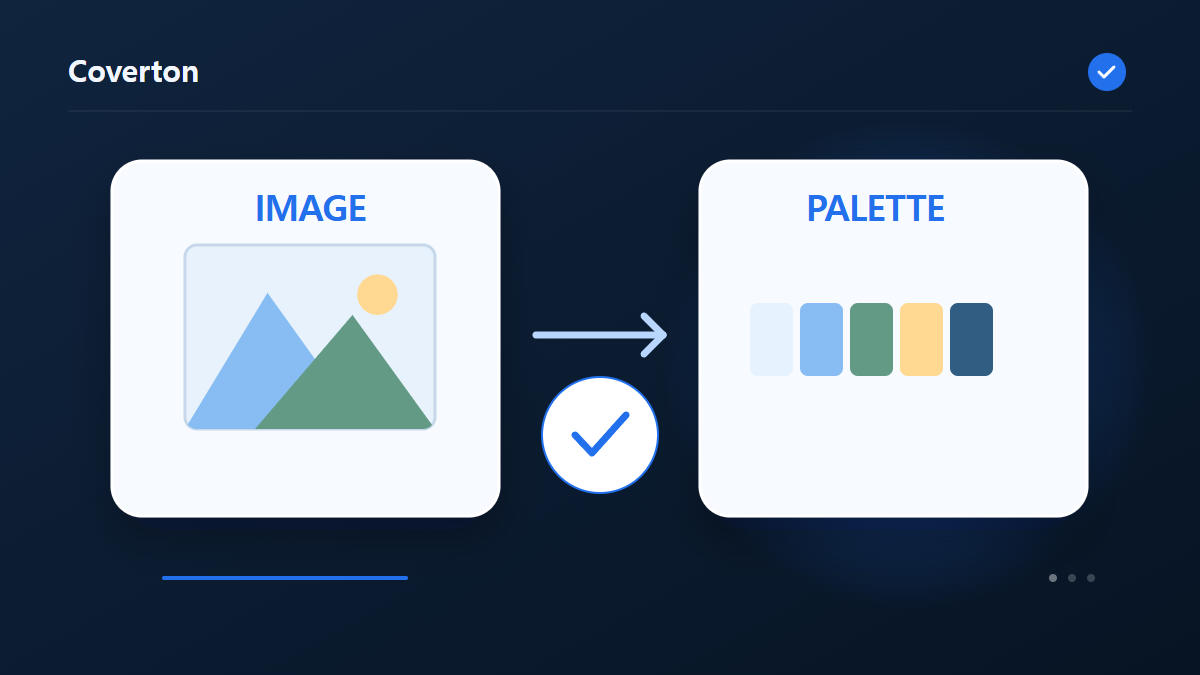
How to use this tool
- Add the image whose colors you want to reference.
- Choose the number of representative colors.
- Run and compare the palette with the source.
- Save PNG, CSV or CSS variables as needed.
Choose the right settings
Choose between three and twelve representative colors according to how much detail you need. A large background can dominate the palette, so compare a cropped image when your interest is a smaller subject.
- Supported input
- JPG,JPEG,PNG,WEBP
- Available settings
- Color count
Before you start
Prepare a representative source
Start with a copy of the source and decide where the result will be used. A picture for later editing, an upload with fixed dimensions and a printed page have different requirements. Check the supported input and intended output in this guide; a new filename extension alone does not convert the file.
Where size, quality, background or crop controls are available, change one choice at a time on a representative image. Include small lettering and an important edge in your comparison. If the task extracts information rather than changing the picture, decide which source region and values you need to inspect.
Write down the recipient’s requirements and the choices used for a trial, including output type and any size or background setting that applies. If a detail is already blurred, cropped or absent in the original, changing an output setting will not supply the missing evidence. Compare an intermediate copy separately from the original: it may already contain changes from a previous step. This record helps you decide whether to correct the source, revise one choice or use a different supported operation.
Compare the result with its source
Open the downloaded output in the program that will actually use it. For image outputs, compare the same area at the same zoom, inspect all edges and read the saved dimensions and file size. For extracted text, measurements or color values, check sample entries directly against the visible source; a plausible-looking result can still be wrong.
If the output differs from the preview or cannot be created, check the input format, this tool’s limits and the selected settings before changing the source. Repeating compression or enlarging a small image cannot restore detail already lost. Keep the original so another trial starts from the same evidence.
Example input and output
reference image → HEX/proportion CSV + CSS + palette PNGExamples describe the workflow. Results depend on the source file and settings.
Check the saved result before using it
Compare the palette PNG with the source and inspect HEX codes and sampled-pixel percentages in CSV. Only selected leading color groups are listed, so their percentages do not necessarily add up to one hundred.
If the result is different from what you expected
A fully transparent image contains no visible colors for this extraction to process. If a small accent is missing, increase the color count or crop its region, distinguishing that sample from whole-image proportions.
Limits to keep in mind
- Analyzes quantized colors in a reduced preview, excluding fully transparent pixels. Not exact source-color or color-management analysis.
Continue with a related tool

This guide explains the public browser tool. Keep a copy of the original and inspect the result before sharing it.