Monthly
US$3.99
After trial, every month US$3.99
Local taxes extra · automatic renewal · 2 PCs
View the 7-day Premium trial COVERTON FOR WINDOWS
Download Coverton til Windows. Log ind med Google for at bruge den gratis plan.
Simple / PremiumInstall Coverton on a Windows 10 or 11 x64 PC.
Choose Google sign-in in the app and check that its pairing code matches the browser. No separate ID or password is needed.
Basic includes 20 files a day, 500MB per file, 2GB a day and 3 files per batch. To try Premium for 7 days, register a card and confirm renewal terms in your account.
Register a card in Creem checkout for a 7-day Premium trial. Your selected monthly or annual plan and applicable local taxes are charged automatically after the trial. Cancel before the first charge to avoid subscription fees.
US$3.99
After trial, every month US$3.99
Local taxes extra · automatic renewal · 2 PCs
View the 7-day Premium trialUS$24.99
After trial, every year US$24.99
Save about 48% vs 12 monthly paymentsAbout US$2.08/month · billed annually
Local taxes extra · automatic renewal · 2 PCs
View the 7-day Premium trialOne trial per account. Register your card in Creem checkout and check the final price, taxes and billing date. Mac App Store purchases are managed separately through Apple.
Vælg filer, et outputformat og kvalitet, og gem derefter et separat resultat.
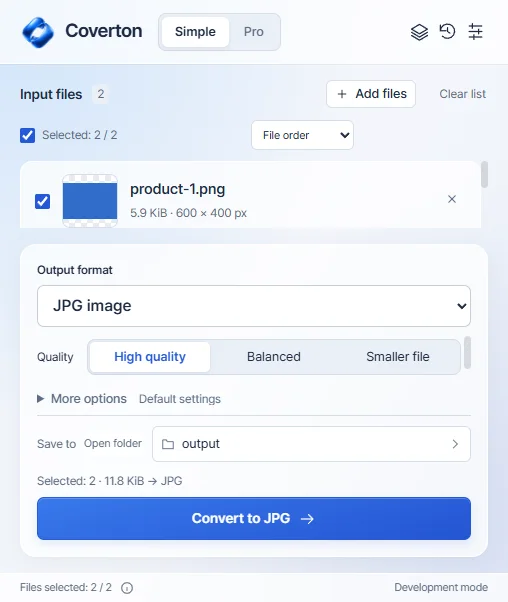
Se forhåndsvisning af filer, find kompatible værktøjer, administrer en batch og genbrug dine forudindstillinger.

Faktisk Windows-udviklingsbygning på engelsk. Desktop-appen understøtter i øjeblikket 10 sprog.
For 64-bit Windows 10 and 11 PCs. On another device, copy this page link to open on your PC or visit that platform’s dedicated page.
1. Download the signed installer and install Coverton. Publisher: 케이제이.
2. Sign in with Google in the app to use the Basic plan. You do not need a separate ID or password.
3. Add files and start with the free tools. When you need Premium, choose a card-backed 7-day trial in your account.
Find Mac requirements, the App Store and Apple subscription information on a separate page.