 Coverton Blog
How to delete PDF pages and check the content that remains
After removing blank or unwanted pages, check how the remaining content joins together. Deletion does not automatically update page numbers printed in the body or rewrite a table of contents that refers to the original numbering.
Open the tool →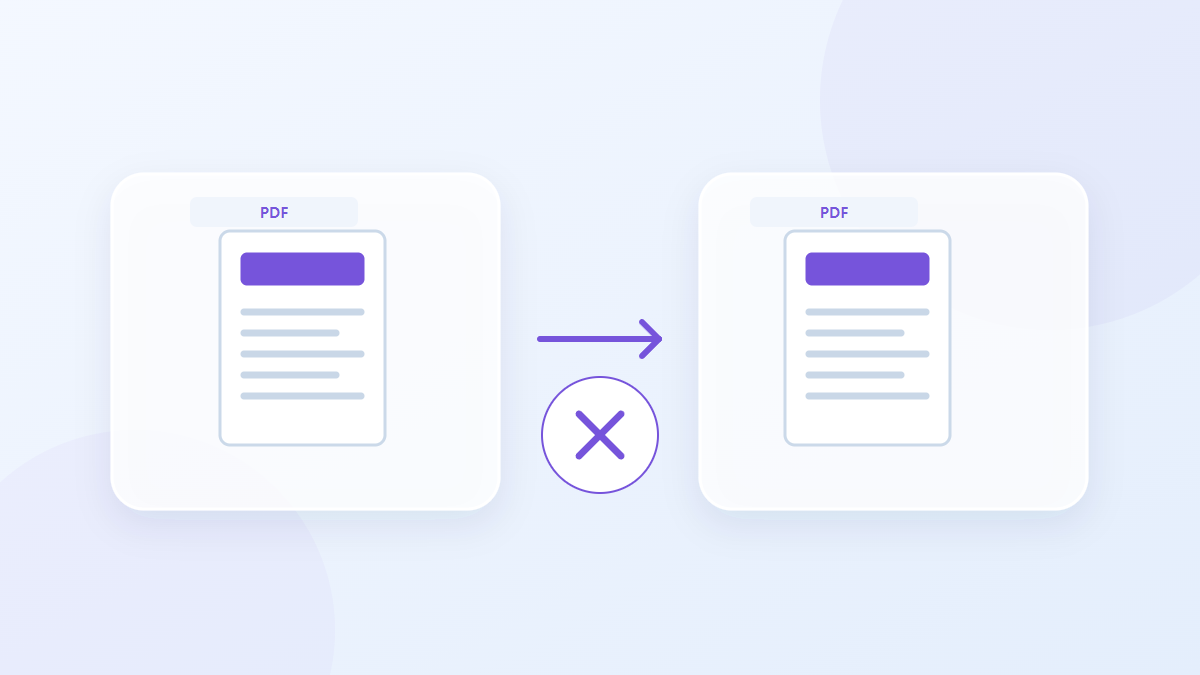
How to use this tool
- Choose files in PDF format. Maximum files per batch: 1.
- Review Page numbers and ranges, then start processing.
- Download the PDF result and check its content and quality.
Choose the right settings
Enter the positions to remove, using a selection such as 2,4-6. Count the cover and contents pages as part of the file, and leave at least one page in the result.
- Supported input
- Output
- Available settings
- Page numbers and ranges
Example input and output
3-page PDF − page 2 → 2-page PDFExamples describe the workflow. Results depend on the source file and settings.
Check the result before you save
Subtract the requested removals from the source page count and compare it with the output. Inspect content on either side of the removed section for explanations or table fragments that should have stayed together.
If the result is different from what you expected
A request to delete every page is rejected. Editing page structure can invalidate an existing digital signature or certification, so retain the signed original when its verification status matters.
Limits to keep in mind
- At least one page must remain. Keep the original if you may need deleted pages later.
This guide explains the public browser tool. Keep a copy of the original and inspect the result before sharing it.