 Coverton Blog
How to split a PDF into single pages or fixed-size groups
Decide whether recipients need individual pages or fixed groups of pages before splitting a PDF. Grouped splitting follows a page count rather than recognizing chapter headings or the meaning of the document's content.
Open the tool →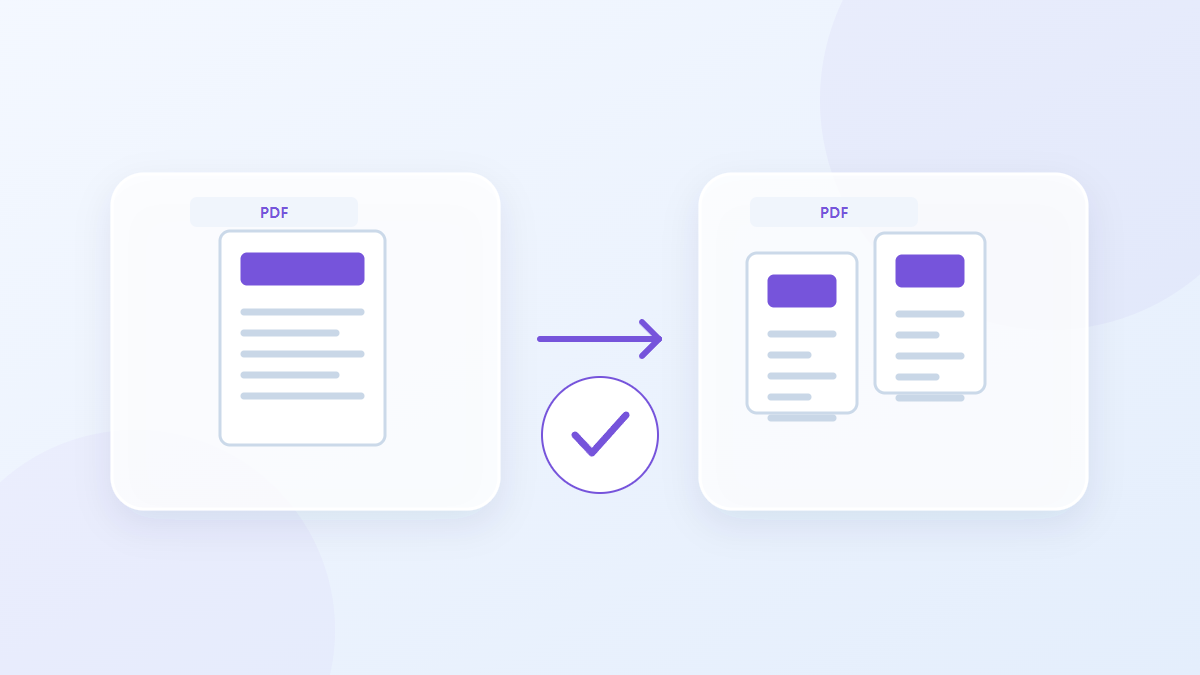
How to use this tool
- Choose files in PDF format. Maximum files per batch: 1.
- Review Split mode, Pages per file, then start processing.
- Download the PDF result and check its content and quality.
Choose the right settings
Select single-page splitting or grouped splitting with the required group size. If the total is not divisible by that size, the last output contains the remaining pages and is shorter than the earlier groups.
- Supported input
- Output
- Available settings
- Split mode
- Pages per file
Example input and output
3-page PDF + 1 page/file → 3 PDF filesExamples describe the workflow. Results depend on the source file and settings.
Check the result before you save
Open the first and last files to verify the starting and ending pages. Add the page counts across all results and inspect split boundaries to check that the source content is complete.
If the result is different from what you expected
Bookmarks, attachments and document-level scripts can differ in the split copies. Do not assume that a signed PDF's certification remains valid in the separate outputs just because its page appearance is retained.
Limits to keep in mind
- The tool works on page boundaries. It cannot split objects or paragraphs within a page.
This guide explains the public browser tool. Keep a copy of the original and inspect the result before sharing it.