 Coverton Blog
How to merge PDFs in the right order and check document boundaries
Decide the order before combining documents for a submission, such as a form and supporting PDFs. Seeing all pages in the combined file does not establish that bookmarks, attachments or other document-level structures were carried over completely.
Open the tool →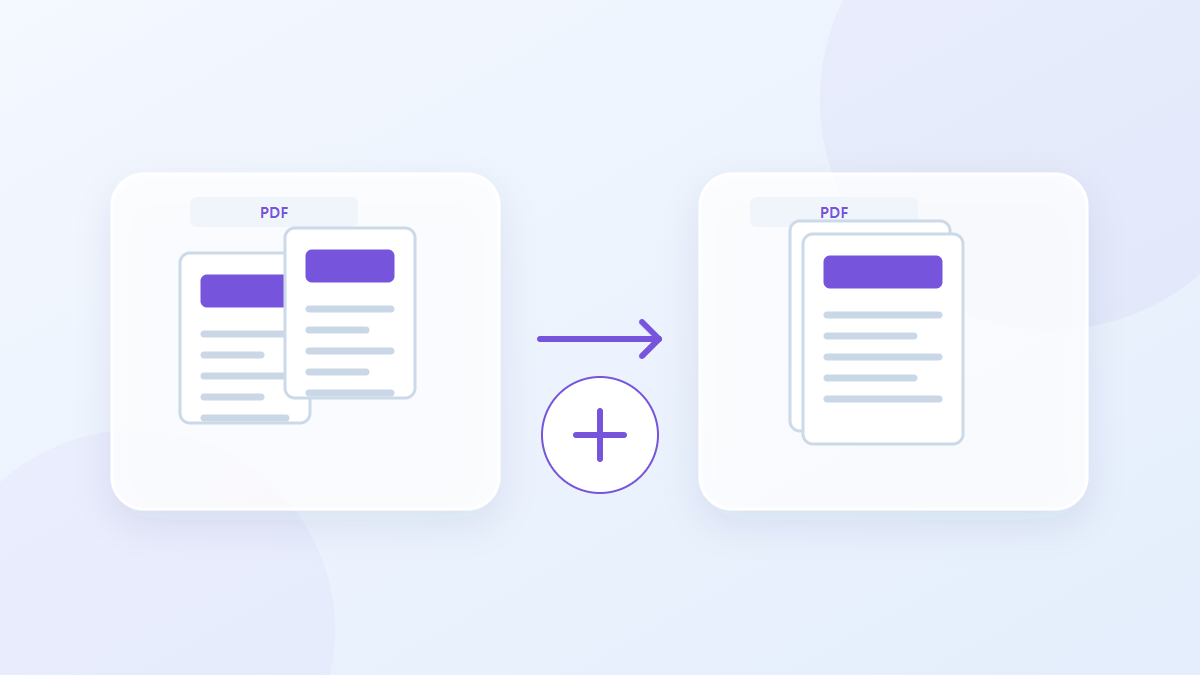
How to use this tool
- Choose files in PDF format. Maximum files per batch: 30.
- Check the input format and file order, then start processing.
- Download the PDF result and check its content and quality.
Choose the right settings
There are no additional merge settings; pages are copied in the order of the file list. Check which document comes first and rearrange the list before processing when the submission requires another order.
- Supported input
- Output
Example input and output
3-page PDF + 3-page PDF → 6-page PDFExamples describe the workflow. Results depend on the source file and settings.
Check the result before you save
Compare the result's page count with the total across the input PDFs. At each document boundary, check the preceding document's last page and the following document's first page.
If the result is different from what you expected
Combining pages can invalidate existing digital signatures or certification. If bookmarks, attachments or document structures matter, inspect those items in the saved output and keep the signed source files available.
Limits to keep in mind
- Encrypted PDFs are rejected. Bookmarks, signatures and document-level forms may not survive page copying.
This guide explains the public browser tool. Keep a copy of the original and inspect the result before sharing it.