 Coverton Blog
Add PDF page numbers with a chosen start and position
When numbering a combined set of handouts, choose a position that distinguishes the new labels from existing ones. Adding labels does not rewrite printed body numbering or update the wording of a contents page.
How to use this tool
- Choose files in PDF format. Maximum files per batch: 1.
- Review Number position, Starting number, Font size, then start processing.
- Download the PDF result and check its content and quality.
Choose the right settings
Set the position, starting number, font size and margin, then choose a numbering style. Review styles that include a page total against the actual number of pages in the document.
- Supported input
- Output
- Available settings
- Number position
- Starting number
- Font size
- Margin
- Number style
Before you start
Define the document’s purpose
Keep the original and decide whether you need changed pages, a new document, extracted information or a report. A readable page is only part of a PDF: forms, bookmarks, annotations and existing signatures may also matter. Check this guide’s supported features before choosing the result for a formal submission.
For a tool that selects pages, distinguish positions in the file from numbers printed on the pages. For a document created from entered values, review the source values and their order instead. If size, placement or print layout can be set, test a page with dense text or content close to an edge before applying the choice more widely.
Make a short plan of the source files, their order and the changes you intend. For an existing PDF, note any page selection and the functions that must survive; for a newly generated document, keep the values from which it is built. If a problem appears only after a later operation, compare the intermediate copy with the original to locate the first change. Record the settings needed by the recipient, so a visually acceptable trial is not mistaken for a document that meets every requirement.
Check content and document behavior
Open the saved file and inspect the beginning, end and any place where content was moved, combined or divided. Compare counts and values with the source or your input list. When the output is a report or extracted text, check a few findings on the actual pages rather than treating an empty report as proof that nothing relevant exists.
If printing is the purpose, use print preview and a test sheet to check reading size and placement. Where interactive fields, links or signature verification matter, test them separately; appearance does not establish that they still work. If processing fails, review protection, format and the stated limits without discarding the original.
Example input and output
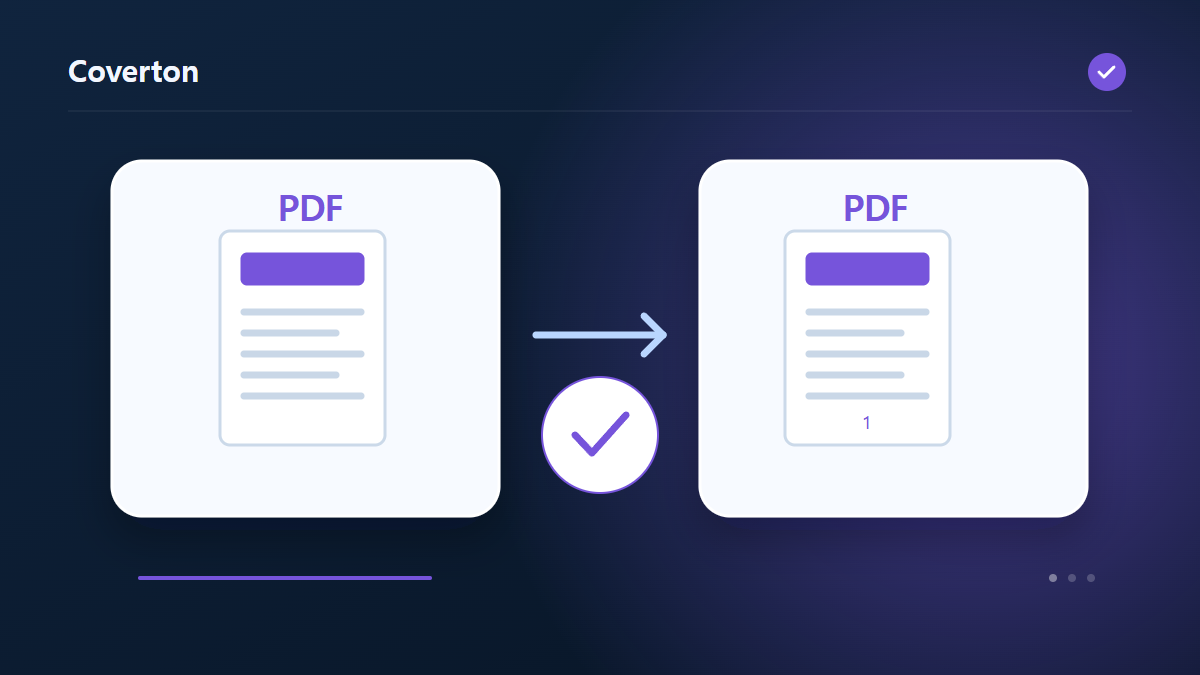
3-page PDF + start 1 → page labels 1,2,3Examples describe the workflow. Results depend on the source file and settings.
Check the saved result before using it
Inspect the first and last pages to verify the starting and ending numbers. Check that labels avoid text, pictures and existing numbering and remain visible within the printable area.
If the result is different from what you expected
Different crop regions or page layouts can make one fixed position overlap content. Adding text can invalidate existing signatures, so keep the signed original when its verification status is required.
Limits to keep in mind
- Added numbers are page content and may overlap existing text. Editing can invalidate digital signatures.
Continue with a related tool
This guide explains the public browser tool. Keep a copy of the original and inspect the result before sharing it.