 Coverton Blog
How to place multiple PDF pages on a sheet without unreadable text
Several document pages on one sheet can suit handouts or quick review copies. More pages mean smaller text, so consider actual print size and reading distance before selecting the arrangement.
Open the tool →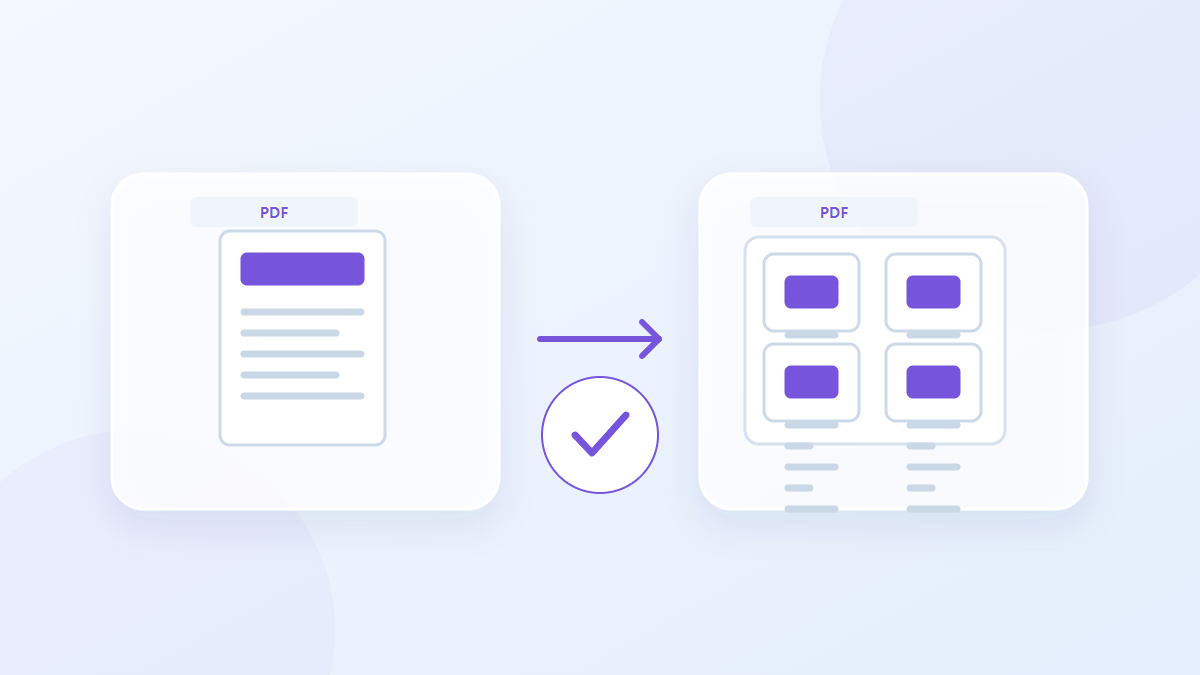
How to use this tool
- Add the PDF pages to arrange.
- Choose pages per sheet and acknowledge the notice.
- Generate and inspect order and small text.
- Save the PDF and print one output page per sheet.
Choose the right settings
Choose two, four, six or nine pages per sheet and acknowledge form and signature effects. Placement retains page proportions on landscape A4, so original margins also contribute to the reduction in visible text size.
- Supported input
- Available settings
- Pages per sheet
- I understand signature/form effects
Example input and output
multiple PDF pages → landscape A4 multi-page sheetsExamples describe the workflow. Results depend on the source file and settings.
Check the result before you save
Confirm that pages follow the source order and test-print the sheet containing the smallest text. Print the generated PDF at one page per sheet because its pages already contain the selected arrangement.
If the result is different from what you expected
Reduce the number of pages per sheet if the text is too small to read. Original forms and signatures are not preserved, so use the source for field completion or signature verification.
Limits to keep in mind
- Place pages on landscape A4. Original forms and signatures are not preserved.
This guide explains the public browser tool. Keep a copy of the original and inspect the result before sharing it.