 Coverton Blog
How to flatten a filled PDF form and check that its values remain visible
Flattening fixes supported form values into the page content and makes the resulting fields uneditable. Keep a fillable original separately if you might need to change the entries after preparing the final copy.
Open the tool →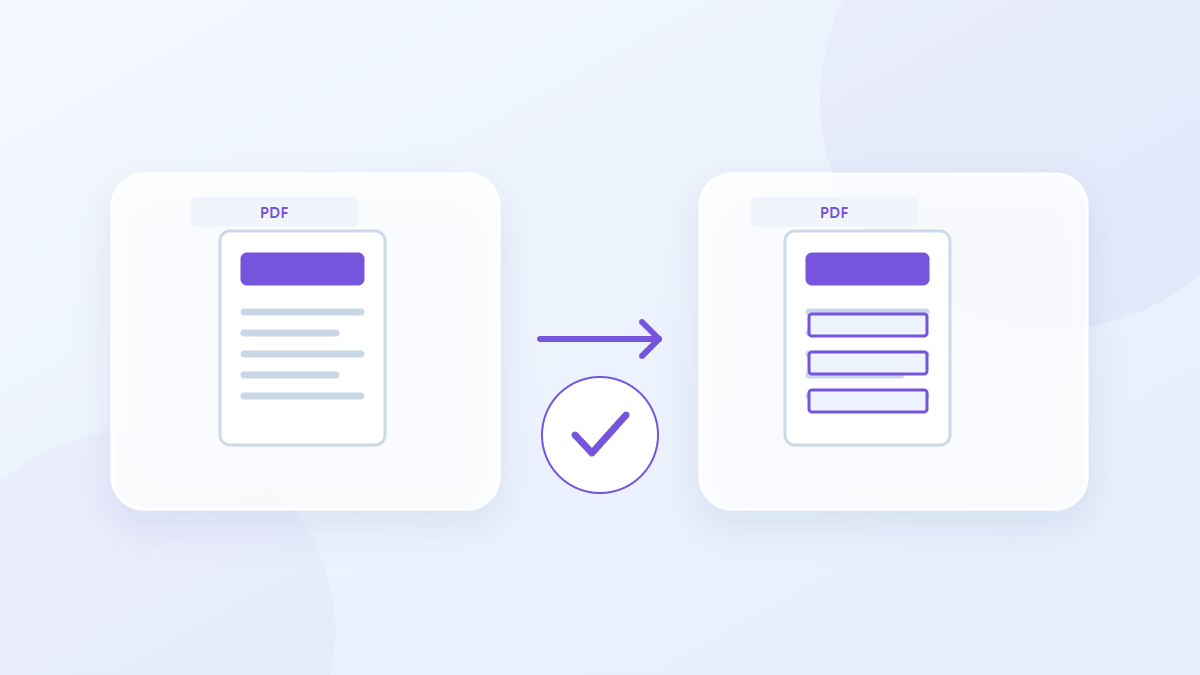
How to use this tool
- Choose files in PDF format. Maximum files per batch: 1.
- Check the input format and file order, then start processing.
- Download the PDF result and check its content and quality.
Choose the right settings
Choose the completed PDF and run flattening without extra settings. Before conversion, save the values in the original viewer and reopen the file to confirm that they are present in the source.
- Supported input
- Output
Example input and output
filled AcroForm → flattened PDF copyExamples describe the workflow. Results depend on the source file and settings.
Check the result before you save
Compare text values and checkbox or selection marks in the output with the completed form. Inspect long values for clipping or blanks and confirm that the fields no longer accept editing.
If the result is different from what you expected
XFA and special forms may be unsupported or display differently. Flattening can also change the verification status of an existing digital signature, so inspect that status if it matters to the submission.
Limits to keep in mind
- The flattened fields cannot be edited as form fields afterward. Verify their visible values first.
This guide explains the public browser tool. Keep a copy of the original and inspect the result before sharing it.